
SchoolPro Training User Guide
Please be aware that we are testing some changes to how our website navigation works, so you may have to check this guide again if something looks unfamiliar.
Logging In to Your Training Account
Logging in on a desktop browser
- Go to schoolpro.uk/my-account or click ‘Login” on the green ribbon at the top of any page on our website.*
- Click “SchoolPro TLC Training Platform”
- Enter your username (usually your email address) and password. These credentials are provided in your ‘Welcome’ email from contact@schoolpro.uk. If you can’t find your original email with your password, you can reset your password using your email address (see below).
- This will take you to your Course Profile page with a list of courses that you are enrolled on, and your progress (see below). To get back to this page at any time, you can click “My Training Account” on the green ribbon at the top of any page on our website.
*Please Note- Clicking “Courses” on the black and white menu, underneath the green menu, will take you to the wrong area of the website.
Logging in on a mobile browser
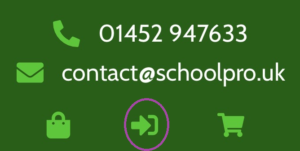
- Go to schoolpro.uk/my-account or click the circled icon, pitctured below, from any page on our website
- Click “SchoolPro TLC Training Platform”
- Enter your username (usually your email address) and password. These credentials are provided in your ‘Welcome’ email from contact@schoolpro.uk. If you can’t find your original email with your password, you can reset your password using your email address (see below).
- This will take you to your Course Profile page with a list of courses that you are enrolled on, and your progress (see below). To get back to this page at any time, you can click “My Training Account” on the green ribbon at the top of any page on our website.
*Please Note- Clicking “Courses” on the black and white menu, underneath the green menu, will take you to the wrong area of the website.
Resetting Your Password
- Visit link https://schoolpro.uk/my-account/ or click ‘Training Sign-In” on the green ribbon at the top of any page on our website.*
- Click on the “Lost your password?” link below the log-in box and a reset link is sent to you via email.
If you do not receive a reset email, please check your junk mail or contact your school administrator to make sure your account was set up correctly.
*Please Note- Clicking “Courses” on the black and white menu, underneath the green menu, will take you to the wrong area of the website.
Your Course Profile Page
Once you are logged in you will see your course profile page which will list the courses that have been assigned to you by your training ‘Team Leader’. If you need to navigate back to this page then click “My Training Account”. It will look a bit like this:
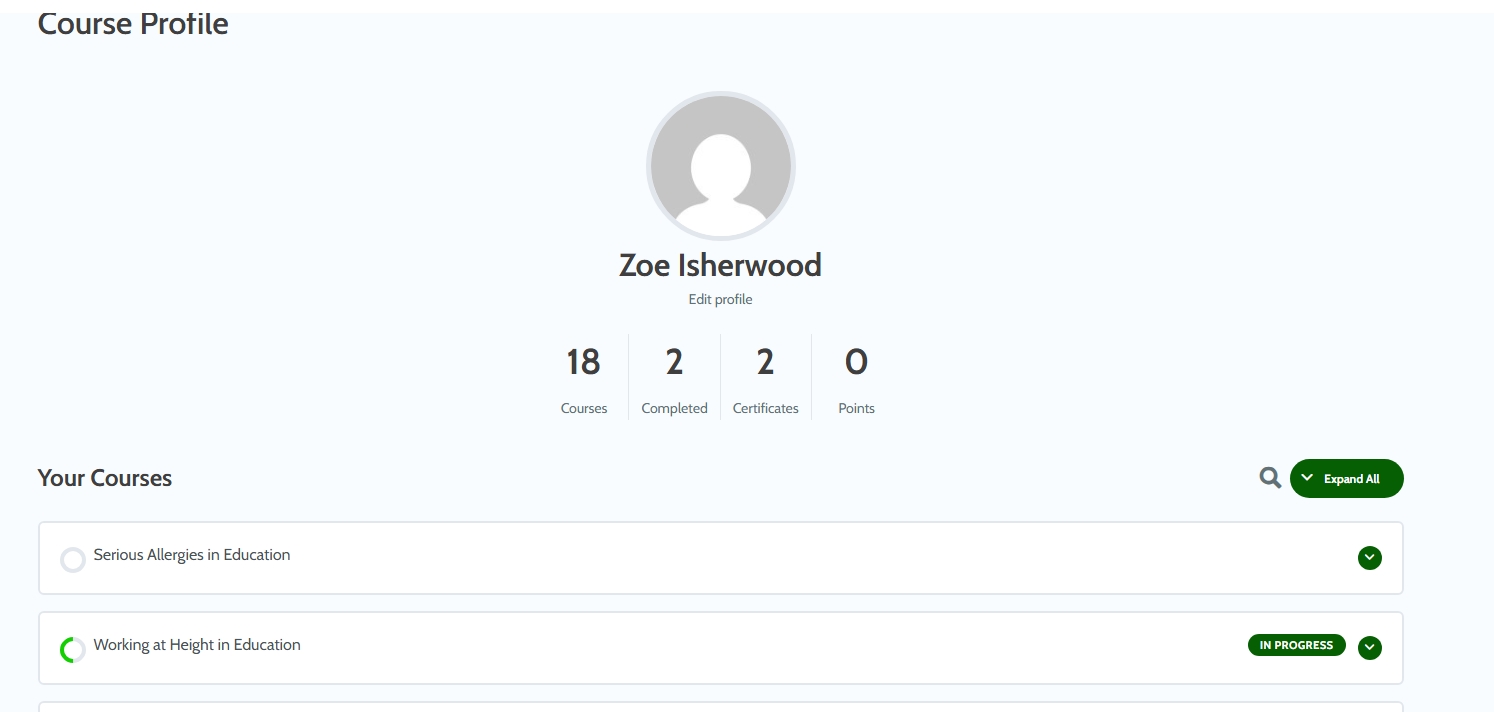
From here you can see your courses and by expanding the sections either with the arrows in green circles or by using the ‘Expand All’ button, you can see your progress too. To get back to this page at any time, you can click “My Training Account” on the green ribbon at the top of any page on our website.
Completing Your Course and Saving Progress
Enter your course via your Course Profile page (see above). When working through the training courses, please ensure that you press the ‘Mark Complete’ button at the end of each section before selecting ‘Next Topic’, to save your progress through the course and get a completion certificate.
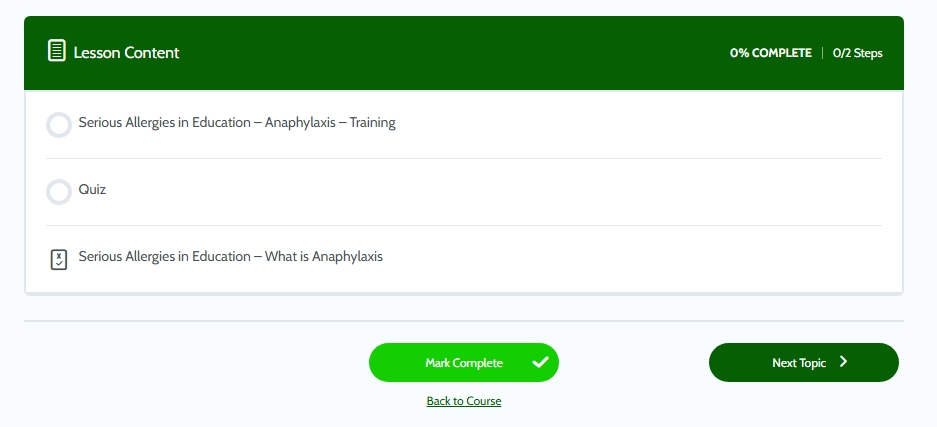
If needed, you can then close down the page and your place will be saved for the next time you log on. To get back to this page once you have navigated away, you can click on “Login” in the top lefthand corner of the page and click “SchoolPro TLC Training Platform”).
When you get to a quiz, you won’t be able to progress to the next topic without passing the quiz.
Once you have marked all sections complete and passed all the quizzes, you will get a completion certificate.
Your Training Certificates
Once you have completed each course, you will be emailed a certificate. You may share this certificate with your school/trust if they ask you to do so.
If you lose this email, you can access your certificates from within your training account.
On the of your training account screen, below your list of courses, you will see ‘Your certificates’. Below are links to PDFs certificates for any of your completed courses.
Resetting Your Training Courses
If you need to reset your training progress to restart the course for a refresher, please contact the member of staff at your school or trust that coordinates training. They will be able to do so via their Training Administration dashboard on our website.
If you do have any issues with any aspect of the training platform, please contact your school administrator and we can support them if needed.
Enjoy your training!